🌍 Change App Language
📋 Overview
Learn how to customize and add new languages to your app's localization system.
🔄 Steps to Change Language
1️⃣ Add New Language
- Navigate to
lib/l10n/ - Create a new language file (e.g.,
app_es.arbfor Spanish) - Add translations for all strings
2️⃣ Configure Language Support
- Update
l10n.yamlto include new language - Run
flutter gen-l10nto generate language files - Rebuild the app to see changes
📝 Notes
- Keep translations consistent
- Test all screens with new language
- Maintain language files updated
🔧 Example Language File
{
    "appName": "e-School",
    "welcome": "Welcome to e-School",
    "login": "Login",
    "logout": "Logout"
}
-
By default, the application language is English. If you want to change the default language, go to
lib/utils/appLanguages.dartand add your respective language's code shown in below image. Get your language code from here: https://developers.google.com/admin-sdk/directory/v1/languages.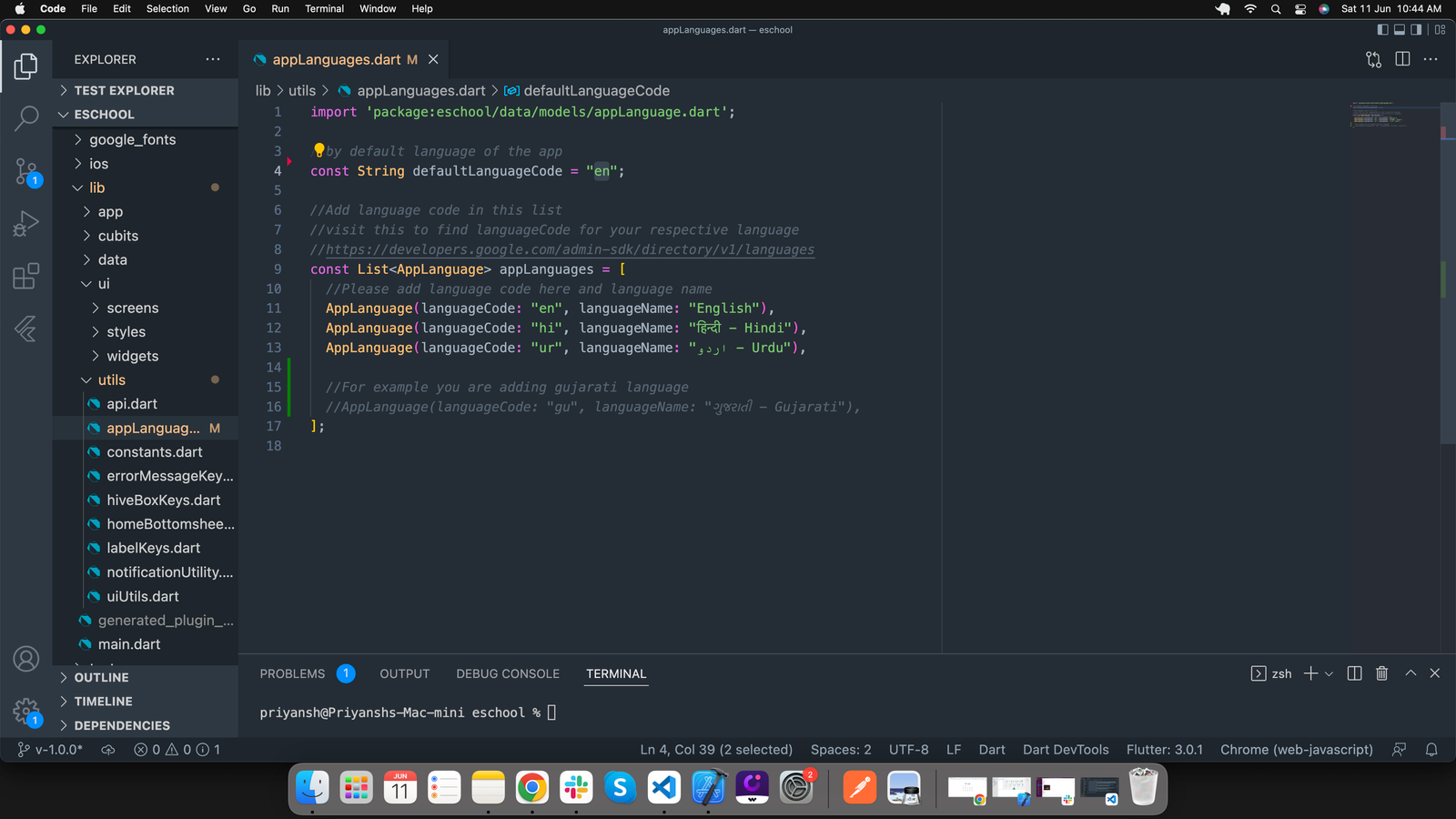
-
If your default language code is not in app language list, add language details in list as shown in below image. Go to
lib/utils/appLanguages.dart: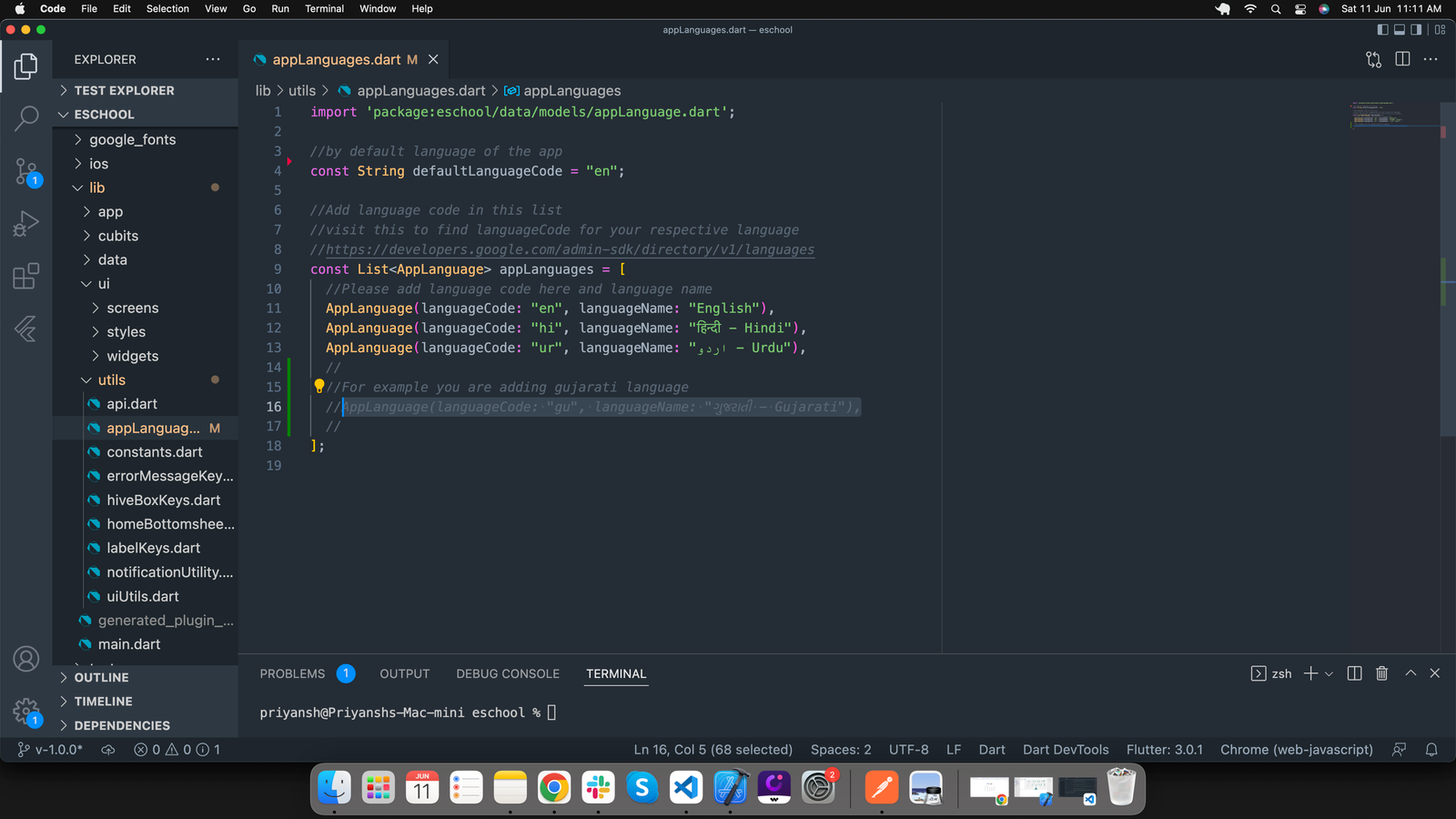
-
If your default language is not in
assets/languages/[language-code].jsonthen create new file in same folder with[language-code].json. Add all the labels from en.json and convert label values in your respective language: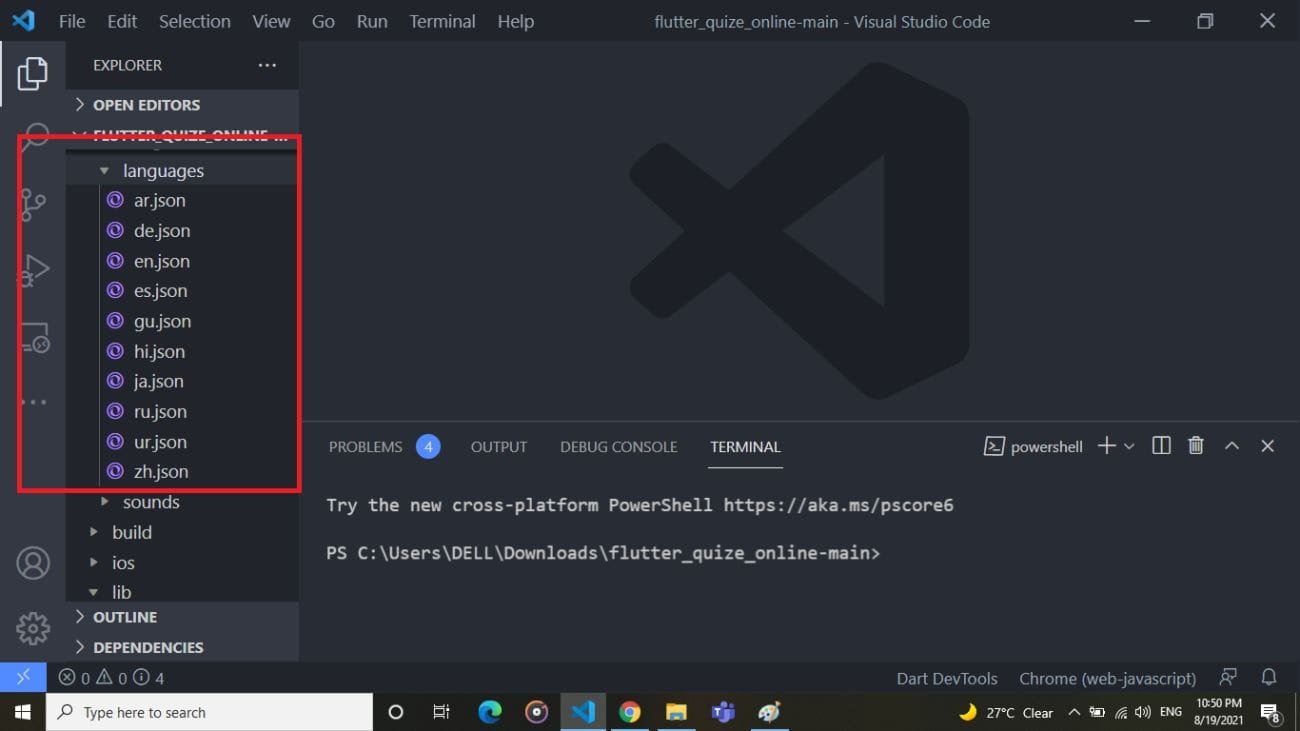
-
Copy all the labels from en.json file in your
[language-code].jsonfile: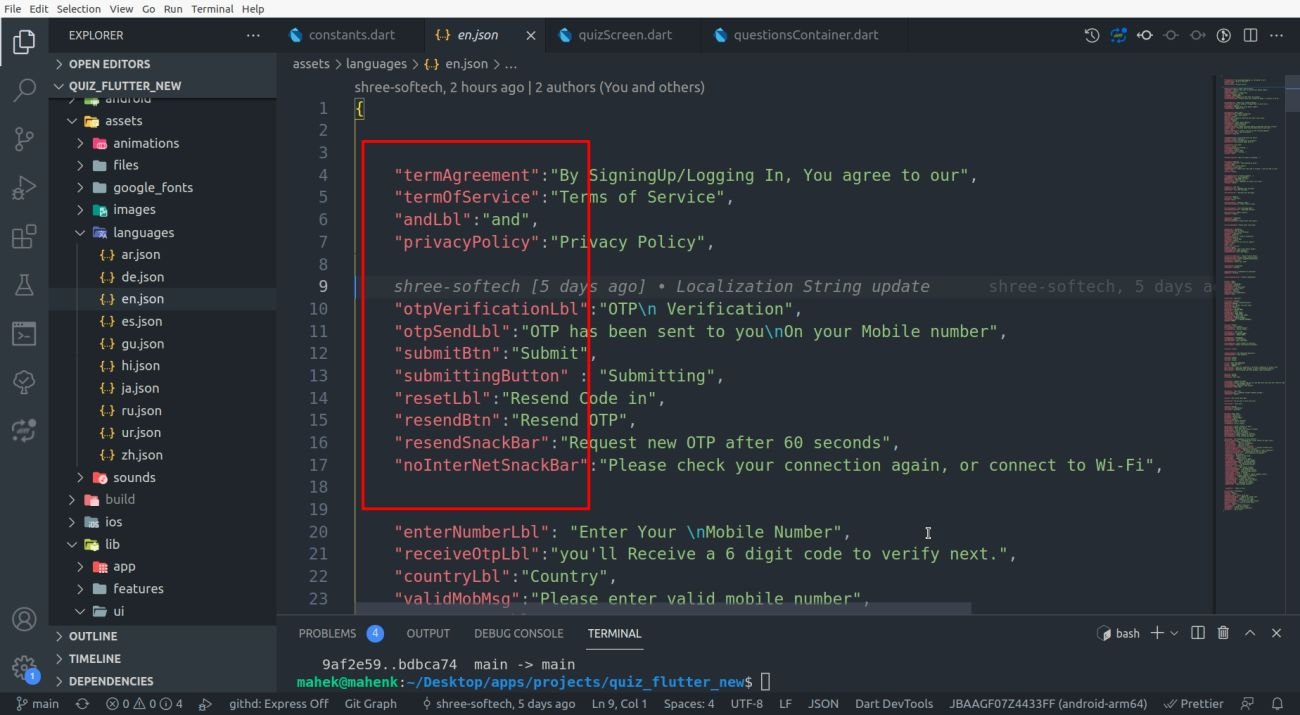
-
If you want to add new language then follow the steps 2, 3 and 4.